On behalf of the Nominating Committee, I’m pleased to share the slate of candidates for the 2026 board election. Every active member organisation is invited to submit a ballot to elect the incoming board class.
We’re providing a summary of the board’s July 2026 meeting. The July board meeting is our only in-person meeting. The board gathers for two days of strategic thinking and long-range planning, as well as conducting annual board business. This year, we focused on allocating surplus funds we have on hand to invest in a three-year project to redesign the content system. In a related discussion, we decided to lower content registration fees starting in 2027 because we’ve had a demonstrated history of generating surpluses, exceeding what we need to run Crossref. We also discussed the board structure, as part of our regular review of stakeholder governance. And we conducted annual board business, such as approving the audited financial statements and reviewed our risk register and mitigation plans.
The resolutions are available on the dedicated section of our website, which also lists the members of the Board and offers further information about our governance.
We also managed to squeeze in watching a World Cup game over dinner.
Starting today, funder names deposited in Crossref metadata without an identifier will be matched to ROR IDs, to support an open and connected Research Nexus. Funding information is an increasingly important part of the scholarly record. The improved matching strategy supports researchers, funders, institutions, and meta-researchers, who rely on that information to understand how research is supported and what outcomes that support produces.
Strengthening Scholarly Publishing in Africa is a collaborative webinar series bringing together ASSAf, Crossref, DOAJ, EIFL, and PKP to share practical guidance, resources, and approaches for strengthening the publishing ecosystem in the region. This series responds to the growing interest in open access, digital publishing, stronger editorial practices, and greater visibility of research publishing across Africa. Each partner organisation has long experience of building that capacity in the area of their expertise. In this series, we’re coming together to offer a more holistic learning experience to the community of African publishers, putting different aspects of the publishing process in their broader context.
This section of our documentation is for Similarity Check account administrators who plan to access iThenticate 2.0 through their Manuscript Submission System (MTS).
Not sure if you’re using iThenticate v1 or iThenticate 2.0? More here.
Not sure whether you’re an account administrator? Find out here.
To set up your integration with your MTS, you need to create an API key by logging into iThenticate through the browser. You will then share this API key and the URL of your iThenticate 2.0 account with your MTS.
Please note: If you are sponsored by Biteca, please contact your sponsor who will help you with this.
Step One: Decide how many API scopes and API keys you need
Within iThenticate, you can set up different API Scopes, and within that, different API keys. Most members will just need one API Scope and one API key. However, some members may need more than one.
If you need to integrate with more than one Manuscript Tracking System (MTS), you will need a different API Scope for each MTS.
If you publish on behalf of societies or work with other organisations who want to keep their activities separate from each other, you will need a different API Scope and API key for each society.
If at some point in the future, you need to change your API key for an existing MTS integration, you must generate a new API key under the same scope that you originally used for this integration.
Step Two: Create your API Scope and API key(s)
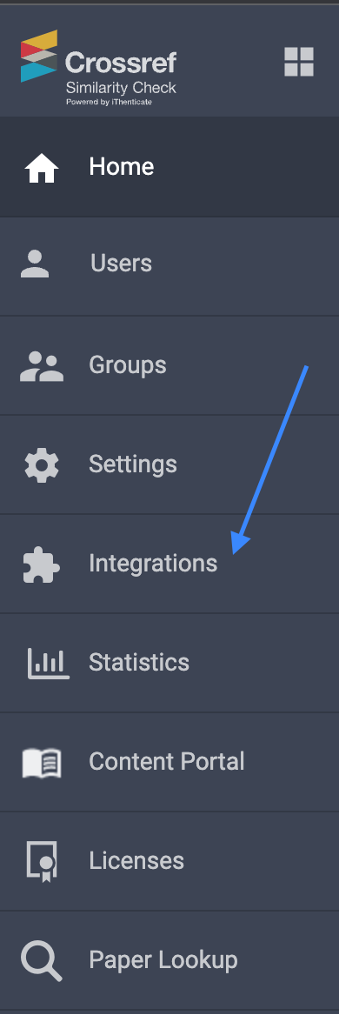
Click on “Integrations” in the menu.
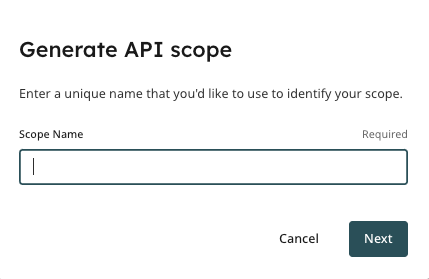
This will bring you to the Integrations section. Click on the “Generate API Scope” key.
You will then give your API Scope a name.
For example, this may be the name of a particular MTS, or of a particular society.
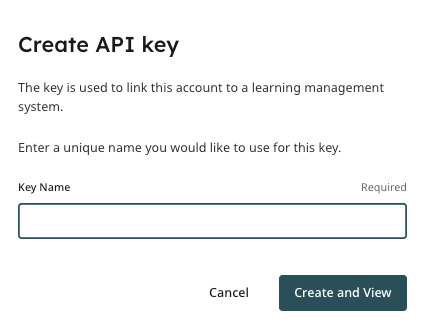
Under your new API Scope, you can then set up your first API key.
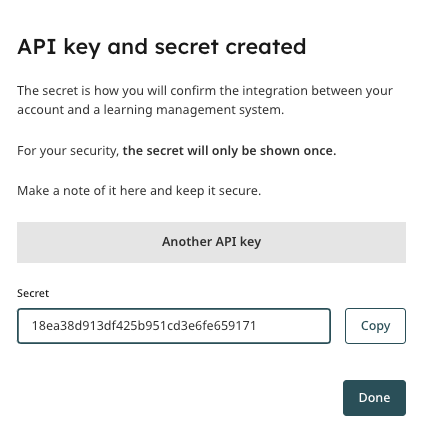
Once you add the key name, you will be able to click on the “Create and view” button. The system will then generate your key.
Step three: Add your API key into your Manuscript Tracking System (MTS)
In order to integrate your new iThenticate 2.0 account and your Manuscript Tracking system(s), your MTS will require from you:
At least one API key
Your unique iThenticate URL containing your Crossref membership number using the following format: https://crossref-xxx.turnitin.com. (For example, if your Crossref Membership number is 1234, your URL will be: https://crossref-1234.turnitin.com. If you are not sure what your Crossref Membership number is, please ask us.
Follow the instructions below for the relevant MTS:
OJS
Follow the instructions found on PKP’s website. You’ll need to ensure that you’re on OJS version 3.3, 3.4, or 3.5. For instructions on how to upgrade your OJS instance, please visit PKP’s documentation here or here, depending on which version you’re currently running.
Editorial Manager
Enter your iThenticate API key(s) and your iThenticate 2.0 account URL into the iThenticate configuration page in Editorial Manager. There are instructions available from Aries Systems here.
eJournal Press
Email your API key(s) and your iThenticate 2.0 account URL to support@ejpress.com and the team at eJournal Press will set up the integration for you.
ScholarOne
If you are already using iThenticate with ScholarOne and are upgrading from iThenticate v1 to iThenticate 2.0, please email your API key(s) and your iThenticate 2.0 account URL to s1help@clarivate.com, and the team at ScholarOne will make the change for you. Please put “Product Management” in the subject line of your email.
If you are a new subscriber to Similarity Check and you haven’t used iThenticate before, you don’t need to email the team at ScholarOne. Just enter your iThenticate API key(s) and your iThenticate 2.0 account URL into the iThenticate configuration page in ScholarOne.
Scholastica
The team at Scholastica will set up the integration for you. Give them your API key(s) and your iThenticate 2.0 account URL by filling out this form.
The team at Scholastica will also set up any exclusions for you, so in the form they’ll ask you which sort of content you want to exclude from displaying as a match.
Page maintainer: Kathleen Luschek Last updated: 2022-July-18