On behalf of the Nominating Committee, I’m pleased to share the slate of candidates for the 2026 board election. Every active member organisation is invited to submit a ballot to elect the incoming board class.
We’re providing a summary of the board’s July 2026 meeting. The July board meeting is our only in-person meeting. The board gathers for two days of strategic thinking and long-range planning, as well as conducting annual board business. This year, we focused on allocating surplus funds we have on hand to invest in a three-year project to redesign the content system. In a related discussion, we decided to lower content registration fees starting in 2027 because we’ve had a demonstrated history of generating surpluses, exceeding what we need to run Crossref. We also discussed the board structure, as part of our regular review of stakeholder governance. And we conducted annual board business, such as approving the audited financial statements and reviewed our risk register and mitigation plans.
The resolutions are available on the dedicated section of our website, which also lists the members of the Board and offers further information about our governance.
We also managed to squeeze in watching a World Cup game over dinner.
Starting today, funder names deposited in Crossref metadata without an identifier will be matched to ROR IDs, to support an open and connected Research Nexus. Funding information is an increasingly important part of the scholarly record. The improved matching strategy supports researchers, funders, institutions, and meta-researchers, who rely on that information to understand how research is supported and what outcomes that support produces.
Strengthening Scholarly Publishing in Africa is a collaborative webinar series bringing together ASSAf, Crossref, DOAJ, EIFL, and PKP to share practical guidance, resources, and approaches for strengthening the publishing ecosystem in the region. This series responds to the growing interest in open access, digital publishing, stronger editorial practices, and greater visibility of research publishing across Africa. Each partner organisation has long experience of building that capacity in the area of their expertise. In this series, we’re coming together to offer a more holistic learning experience to the community of African publishers, putting different aspects of the publishing process in their broader context.
To work out which version you’re on, take a look at the website address that you use to access iThenticate. If you go to ithenticate.com then you are using v1. If you use a bespoke URL, https://crossref-[your member ID].turnitin.com/ then you are using iThenticate 2.0.
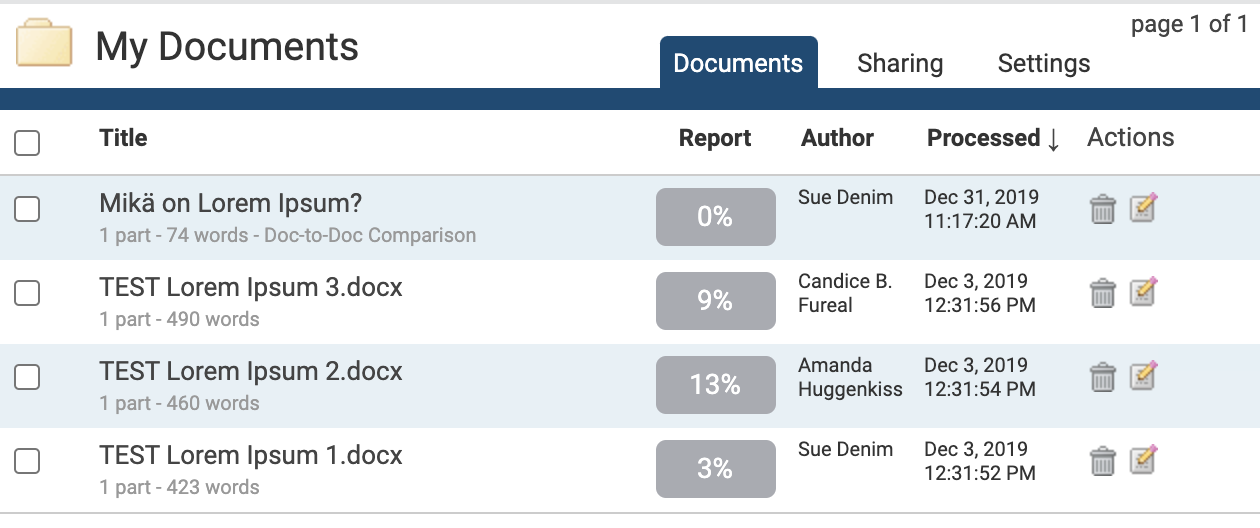
Within a folder, the Documents tab shows all the submitted documents for that folder.
Each document submitted generates a Similarity Report after the document has been through the Similarity Check. If more documents are present than can be displayed at once, the pages feature will appear beneath the documents - click the page number to display, or click Next to move to the next page of documents.
zip file upload - to submit a zip file containing multiple documents, up to a maximum of 100MB or 1,000 files. Larger files may take longer to upload
cut & paste - to submit text directly into the submission box. Use this to copy and paste a submission from a file format that is not supported. This method supports plain text only (no images or non-text information)
iThenticate currently accepts the following file types for document upload:
Microsoft Word® (.doc and .docx)
Word XML
plain text (.txt)
Adobe PostScript®
Portable Document Format (.pdf)
HTML
Corel WordPerfect® (.wpd)
Rich Text Format (.rtf)
Each file may not exceed 400 pages, and each file size may not exceed 100 MB. Reduce the size of larger files by removing non-text content. You can’t upload or submit to iThenticate files that are password-protected, encrypted, hidden, system files, or read-only.
.pdf documents must contain text - if they contain only images of text, they will be rejected during the upload attempt. To check, copy and paste a section of the .pdf into a plain-text editor such as Microsoft Notepad® or Apple TextEdit®. If no text is copied over, the selection does not contain text.
To convert scanned images of a document, or an image saved as a .pdf, use Optical Character Recognition (OCR) software to convert the image to text. The conversion software can introduce errors, so manually check and correct the converted document.
Some document formats can contain multiple data types, such as text, images, embedded information from another file, and formatting. Non-text information that is not saved directly within the document will not be included in a file upload, for example, references to a Microsoft Excel® spreadsheet included within a Microsoft Office Word® document.
Use a word-processing program to save your file as one of the accepted types listed above, such as .rtf or .txt. Neither file type supports images or non-text data within the file. Plain text format does not support any formatting, and rich text format allows only limited formatting.
When converting a file to a new format, save it with a different name from the original, to avoid accidentally overwriting the original file. This is especially important when converting to plain text or rich text formats, to prevent permanent loss of the original formatting or image content of the file.
Page maintainer: Kathleen Luschek Last updated: 2020-May-19